Tuesday, October 18, 2022

Oracle APEX Form: Save before Print

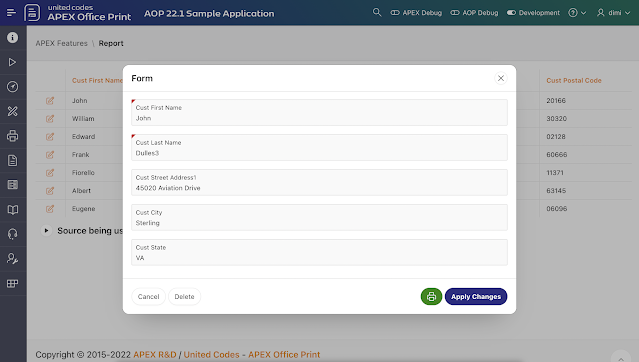
In almost every Oracle APEX application I create a Report with Form to edit the data.


On this Form many people add a Print button to generate a document for this specific record.


From time to time I get the question how to first save the record and next print or download the document.

Here are the 5 steps to do this:

1. Duplicate the Save button and name the button Print. Or alternatively create the Print button from scratch and make sure to set the action to Submit, the Database Action to SQL UPDATE action, and make it conditional to only show when the PK is not null. 

This will make sure when the automatic row processing is performed the update is happening.

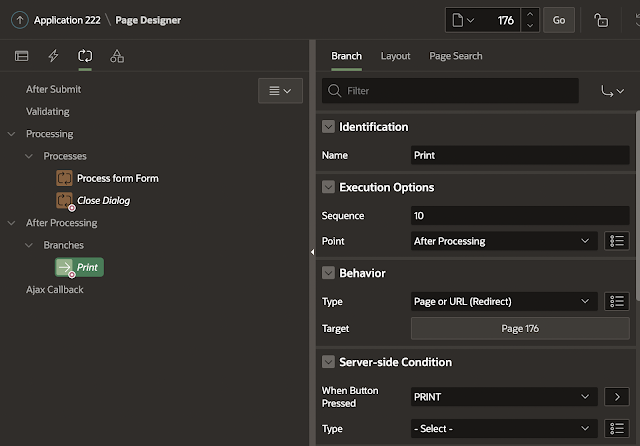
2. In the processing section, create a Branch with a Server-side Condition when button pressed PRINT. 


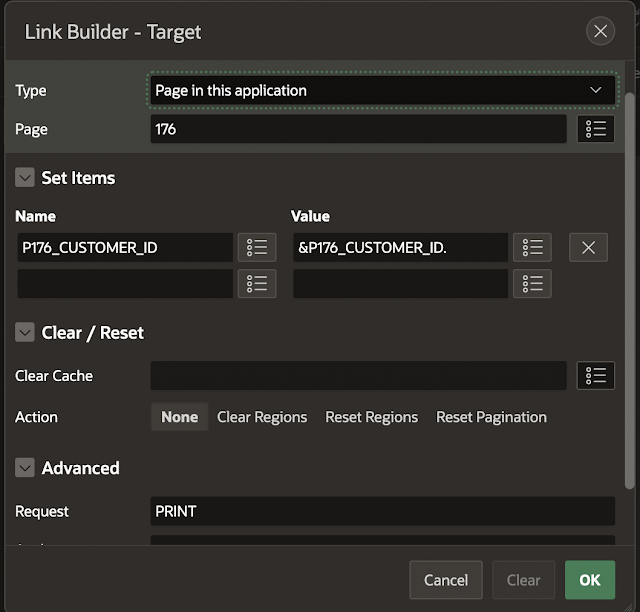
When clicking the Target button in the Branch, link to the same page, and pass the item with the primary key and most importantly set the Request to PRINT.


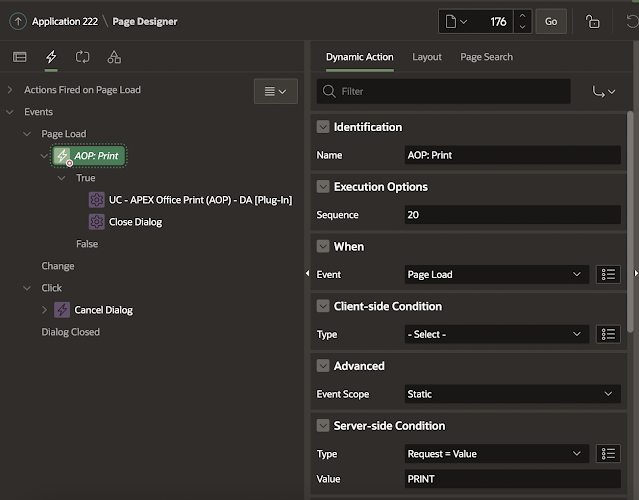
3. Create a new Dynamic Action called AOP Print which runs on Page Load with a Server-side Condition that the Request value = PRINT (as we defined in the Branch).

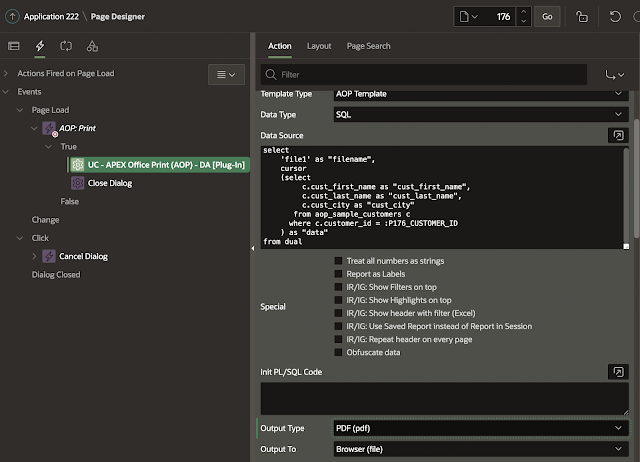
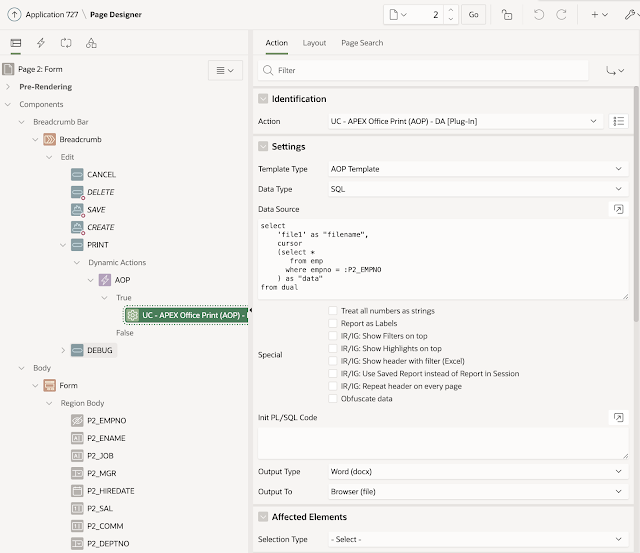
4. Add as True Action the APEX Office Print (AOP) dynamic action (DA) plug-in. 
Specify the template and data (SQL) and the output you want (PDF). We want the document to download into the browser.


Optionally, add another True action to Close the Dialog in case your Form is a dialog and you want it to automatically close.

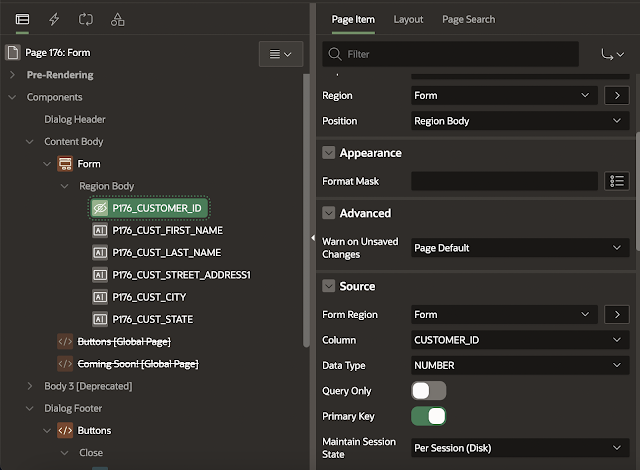
5. When you download the document, it might be empty. This is because our PK isn't known to the AOP process. See my previous blog post which goes in more details. So the final step is to set Maintain Session State: Per Session (Disk) for the primary key item.


And that's it... now when you click the Print button, it will save the record first and next download the document to the browser (and optionally close the dialog of the Form).

Tuesday, October 11, 2022

No value of a page item when using a Dynamic Action

Sometimes you expect to see some data in your Oracle APEX application and it's not there... in this post I will describe one use case I see more often and how to solve it.

We have a report which shows all the employees (coming from the EMP table):


Clicking the pencil icon opens up the form of that employee:


We added two extra buttons

  • a print icon which creates a document for the employee
  • a bug icon which adds 10% of the salary in the commission field

Let's first start to see what is behind our Print button. We use the APEX Office Print (AOP) Dynamic Action to generate a document, but when opening the document it's empty. 


Behind our Bug button we have a Dynamic Action that fires a process and sets the value of an item when P2_EMPNO is not empty, but for some reason the commission is not being filled in.

In both cases, we don't get the data that we expect to see...

Whenever you have an issue like this, I turn APEX debug on (see APEX developer toolbar and click Debug > App Trace), click the button again and check my debug output (Debug > View Debug).


This is what I saw in the debug output after clicking the Bug icon:

We can see that the EMPNO item is empty, so our IF statement in our code is returning false, and the commission is not being calculated.

By default, APEX puts the primary key column as a hidden item on the page. The following two settings of the item are important: Maintain Session State is set to "Per Request (Memory Only), and Session State Protection is set to "Checksum Required - Session Level".


The error in the debug output was "Access to undefined Per Request (Memory Only) variable P2_EMPNO", which doesn't allow the value of the item to be known in dynamic actions (AJAX requests). One way to solve this is to change the "Maintain Session State" to "Per Session (Disk)".  


And now, on the debug output, we see the value of P2_EMPNO being filled in, and the commission is being calculated.


Also, when we Print the document, we now see that the employee is being filled in.

Yay! We now see our data! 😀 

You might wonder why did this solve my issue? When session state is maintained "Per Session" the value is stored in the database and available across requests, whereas when "Per Request" is set, the value is only available during page load.

An alternative to the above solution is to define in your dynamic action the item you need the value of in "Items to Submit". But with session state protected items, depending on the use case, this might not always work, and you get a checksum error.

Monday, April 04, 2022

Export multiple tables to one Excel with different sheets in Oracle APEX

Today there was a question on how to export data from the Oracle Database and Oracle APEX into one Excel file with multiple sheets. Each sheet contains data from a different table.

With APEX Office Print it's a matter of a few minutes to fulfill this request 😀

If you have never heard of APEX Office Print (AOP), here's one paragraph on it.  AOP is the easiest to use product/plug-in that fully integrates with Oracle APEX to give you all the reporting and export functionality you've dreamed of. You create templates in Word, Excel, PowerPoint, HTML, or Text and AOP will merge it with the data coming from your database, APEX components, or REST Web Service and return a document to you in the output format of your choice (PDF, Word, Excel, PowerPoint, HTML, Text). If you want to get started with AOP, here's a quick Getting Started with AOP video.

Let's get back to this example where we want to generate a single Excel file, with multiple sheets and each sheet contains data from a different table.


Step 1: Prepare your SQL statement.

In this example, we want to export the data coming from our customers, products, and orders table.
AOP understands the CURSOR Expressions of SQL. Each cursor will contain the columns of the different tables. You can have as many cursors as you want, look at them as blocks of data.

select
  'file1' as "filename", 
  cursor(
    select  
      cursor(
        select
          cust_first_name,
          cust_last_name,
          cust_city
        from aop_sample_customers) as "customers"
    , cursor(
        select 
          order_id, 
          order_total          
        from aop_sample_orders) as "orders"
    , cursor(
        select 
          product_name, 
          product_description,
          category,
          product_avail,
          list_price
        from aop_sample_product_info) "product"
    from dual) as "data"
from dual

Note that with the cursor expression you can also create more nested data (as seen in the AOP Sample App on page 30). For example, if you want to see all orders and order lines of a specific customer, your SQL statement would look like this:

select
  'file1' as "filename", 
  cursor(
    select
      c.cust_first_name as "cust_first_name",
      c.cust_last_name as "cust_last_name",
      c.cust_city as "cust_city",
      cursor(select o.order_total as "order_total", 
                    'Order ' || rownum as "order_name",
                cursor(select p.product_name as "product_name", 
                              i.quantity as "quantity",
                              i.unit_price as "unit_price" 
                         from aop_sample_order_items i,
                              aop_sample_product_info p
                        where o.order_id = i.order_id
                          and i.product_id = p.product_id
                      ) "product"
               from aop_sample_orders o
              where c.customer_id = o.customer_id
            ) "orders"
    from aop_sample_customers c
    where customer_id = :CUSTOMER_ID
  ) as "data"
from dual

So you can add the CURSOR() expressions on the same level as well as in a hierarchy.

Now that we understand this, let's get back to our example, where we wanted to export the data from the SQL statement to different sheets in Excel.


Step 2: Create your Excel template

There are a few ways to create your own template:

  • You can start from a new empty Excel document,
  • or you can start from a template of your company (e.g. with the logo and some house branding),
  • or you can download a template you like from Microsoft's Excel template repository,
  • or you can let AOP generate a starter template for you.
We will use the last option. Nothing easier than letting AOP create a template for us!

AOP has a PL/SQL API or an Oracle APEX plug-in you can use. In this example, we will use the plug-in. I won't go over how to install the Oracle APEX plug-in, you can find that in the getting started video.

So, on our Oracle APEX page, we create a button and a dynamic action calling the APEX Office Print plug-in. We specify that we want an AOP Template, we add the SQL statement as the data source, and select an Excel file as the output type. Here's what it looks like in Oracle APEX:


When clicking the button, this is the Excel file AOP generated:


The AOP template will add the tags (see lines 4, 7, and 10 between {}) for the data you specified in the SQL file, and give some more explanations below to explain what is possible with AOP. For example, AOP can also generate sheets or use formulas dynamically.

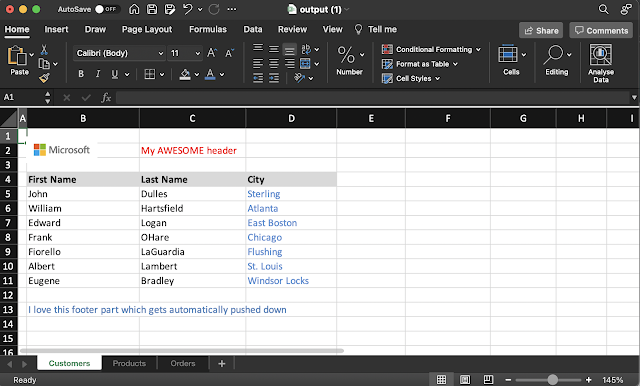
To finish our template, the only thing we need to do is to copy lines 7 and 10 and put them on their own sheets. Finally, we customize the template exactly as we want. For example, we can give it a header, make some tags bold and make it really pretty with our company logo.


Once we are happy with our template, let's upload it to Static Application Files in our app. Note: you can store the template in your own table, the filesystem, online, anywhere that AOP can access.


Step 3: Specify the template and Done!

Finally, specify the new template in the AOP Dynamic Action. The Template Type is Static Application Files and the Template Source is the filename.

And presto, you are done! Click your Excel button again and here's the output:

So any time you need to create a report in Excel with data coming from Oracle APEX or the database, you know you can do it with APEX Office Print (AOP)! 😁
Monday, November 08, 2021

Oracle APEX 21.2: some things to unlearn

A few days ago Oracle Application Express (APEX) 21.2 was released. You can now upgrade your own environment with this new release. 

With every new release, it's important to look at the Release Notes. One section I'm particularly interested in is the Deprecated Features. Features listed in this section will still work, but sometimes in the future it might not, so it's a good time to start unlearning to use those features. Typically these features are not really necessary anymore or got replaced by something else, but it also occurs that some things get changed over time to make things more consistent or logical for new people.

One deprecated feature in APEX 21.2 got my intention... The use of the following substitution strings #APP_IMAGES# and #IMAGE_PREFIX# should from now on be avoided. Instead, make use of #APP_FILES# and #APEX_FILES#. Here's a complete list of substitution strings that should not be used anymore:

I will need to get used to not using #APP_IMAGES# anymore, as I used that from time to time when constructing a URL for a file in Static Application Files. 

Another deprecated feature is some region positions like After Header and Before Footer, next to Body 1, Body 2, and 3.

Monday, October 11, 2021

Oracle APEX Support from 5 years to 3 years #JoelKallmanDay

If you are still running Oracle APEX 5.1, it might be time to schedule an upgrade. Support is running out at the end of the year. 

Does it mean you can't use Oracle APEX 5.1 after December 2011? No, not at all, if you have no need to upgrade, and all is running smoothly, it's fine... you just can't request a patch anymore.


Till the 20.2 release you could stay on an APEX release for 5 years, but that has changed since the 21.1 release. Oracle announced it will reduce the support for an APEX version from 5 years to 3 years.  

As Oracle APEX is a web development tool and things change so fast on the internet, I would recommend upgrading faster than every 5 years anyway. From a security and browser/mobile compatibility point of view, upgrading makes all the sense. Having said that, if you run an app internally and don't upgrade browsers within your company, I can understand if you just keep what you have and don't want the hassle of upgrading. Upgrading Oracle APEX is typically a breeze, but still testing is required and some things might behave slightly different or became deprecated.

At United Codes we keep 3 instances on our main server: Oracle APEX 18.1, 19.2, and the latest version of APEX, to which we upgrade very fast. The 18.1 release we use as a base for most APEX plug-in development, unless we need some specific plug-in features for which we need to use 19.2 (e.g. for IG support). 

With APEX Office Print we try to support all features of APEX, e.g. when the new maps component came out, we made it so you can include it in your documents. So for that development, it's crucial to stay on top of the game. To most of our customers, I give the advice to wait for the first or second patchset, depending on our own findings.

I wrote this post for Joel Kallman Day, a day we push out content as a community and try to generate a bit of buzz.

Saturday, July 24, 2021

Hiding spinning icon in APEX 21.1 Modal Dialog

An AOP customer wrote us that when opening a PDF in a Modal Dialog the spinning icon didn't disappear automatically anymore in Oracle APEX 21.1, whereas it did before.  


I created a use case but saw it not only affects the AOP process but any file you want to open in the Modal Dialog. With previous versions of APEX, this didn't happen, but with APEX 21.1 the Modal Dialog keeps showing the spinning icon.

Here's an animated gif that shows the use case:
I created two use cases; both buttons redirect to a modal page in the app.

On the modal page behind the "View File" button, there's a before header process which gets a BLOB (PDF) from the database and displays it inline.


On the modal page behind the "AOP Modal" button, there's a before header AOP process which generates a PDF of a classic report on the fly.


To work around the issue, I added a dynamic action on the page where the buttons are defined; on click of the button, it will execute the following JavaScript code:

setTimeout(function(){ 
  $('.ui-dialog--apex.t-Dialog-page--standard .ui-dialog-content').addClass('js-dialogReady');    
}, 2000);

After waiting 2000 milliseconds (2 seconds) it will add the js-dialogReady CSS class, which tells the icon to hide.


Hope it will help you in case you need to remove the spinning icon from your modal dialog.

Tuesday, June 08, 2021

Have extra EURO 2020 fun with this Oracle APEX app

For the last 15 years, with every big football tournament (World Cup and Euro Cup), we've launched an Oracle APEX app where you can predict the scores of the games. You can find this year's app at https://euro2020.unitedcodes.com

Features

Many people do a challenge with their friends or company, for fun, for money... Instead of using a custom-made Excel, use of email, or use of paper, you can use the Euro 2020 Challenge site to track who's in the lead.

  • You can enter the scores of every game and see how well your predictions compare to others (overall).
  • You can create a group e.g. your company, or a team, etc and see how well you play within your group.
  • You can see statistics of predictions

History

15 years ago, I built a site to promote the use of Oracle APEX. People loved it, so I decided to update the site with every new release of APEX. You can find some more history and screenshots of how the app looked here. Not that many changes have been done compared to the app from 2018, but this year it runs on Oracle APEX 21.1, so it shows that upgrading APEX apps is smooth.

Oracle APEX features

When upgrading to the new Oracle APEX version, the Advisor and Upgrade assistant were run. Some plug-ins (e.g. select2) got replaced by built-in features (e.g. Inline Pop-up). Most changes were done in the Admin section, where tabular forms were replaced by Interactive Grids, native Forms regions are now being used, and other parts that showed up in the upgrade assistant were applied.

Social authentication was updated, so you can sign-up and log in with Email, Facebook or Google.

Normally with an upgrade, we also update the Universal Theme version, but as it's using a custom theme we didn't do it for this app.

Go and play!

So, now head  to the site/app and start challenging your friends!


Good luck!

Saturday, June 05, 2021

Upgrading Oracle APEX has never been easier

On May 12th Oracle APEX 21.1 was released. 

This post is not about why Oracle APEX 21.1 is worth an upgrade. You can see for yourself if you like the improvements in the Release Notes. Some companies upgrade once a year, some wait for the patch set bundle, and some upgrade very fast.

We upgraded our production instance this weekend. I blogged about how we do the upgrades and try to minimize downtime in the past. But upgrades have become even easier!

While the Oracle APEX kept running; 15 minutes install which of 5 minutes downtime, and we were done!

Note: it's always good to read the installation guide

Below what we did: 

  1. Download Oracle APEX
  2. Unzip
  3. Go into the directory 
  4. Connect to the Oracle Database with SQLcl or SQLPlus 
  5. Run 1 command:
@apexins.sql SYSAUX SYSAUX TEMP /i/

That was it! ... the installation did everything for us... and again this was in a live environment!
ORDS knows now that an APEX install is busy and suspends traffic for a certain time and next it comes up again:

Phase 1: no downtime


Phase 2 and 3: small downtime during phase 3 switch:


And done:


During Phase 3 downtime, I copied the new images folder.

I believe it wasn't really necessary as everything was working, but I did run the ORDS validate after the APEX install just to check it (while ORDS was still running):


And the proof of the max 5 minutes downtime:


I'm really impressed by the install and upgrade, it's basically an autonomous process these days 😀 

Monday, May 31, 2021

In memory of Joel Kallman

On May 26th, now a few days ago, the world stood still for a moment for me. When I read that Joel passed away, I didn't know how to deal with it. If it's already hard for me, what about his family and the APEX team... it was a storm in the whole Oracle APEX community, and all of us were shocked and wish his close family and friends the most support.

It just hurts as Joel was such an amazing person, both on a personal level and professionally. I don't know anybody else who's so unselfish, understanding, and approachable as Joel. He was a great person all-around. 

After Carl and Scott, it's the 3rd person who leaves my Oracle APEX family too soon.

Joel was employee number 1 of Mike Hichwa, and they both created and supported APEX from day 1. 

The moment I saw APEX (HTMLDB) it was love at first sight. I became passionate about this great Low Code Development Tool! When I wrote the World Cup Challenge in 2006, to promote what you could do with Oracle APEX, Joel was one of the first to reply to my blog post.


Later on that year I followed his session at Oracle Open World "Building Real-World Solutions with Oracle Application Express" 

That Oracle Open World was legendary, as we held the first-ever Oracle APEX Meetup 

I reread that post, and already back then I wrote: "One thing is sure: Michael Hichwa and Joel Kallman really want to support us!" 

And boy they did... Joel became the face of our community, a true leader.

Many more conferences followed, where APEX presentations were always successful. Kscope became a special place where not only the APEX content was at an exceptional level, it was also the place where many people from the APEX Dev team came together and mingled with the community. Not only was everybody very accessible during the conferences, even during the evening activities and parties we had so much fun, and Joel went always "all-in"! From serious conversations to just laughs and playing poker.

In 2014, after a difficult time for me, I had a really nice chat with Joel. He told me he would pray for me and I will never forget his support.

I appreciate Joel tremendously both on a personal as professional level. He helped so many people, including me. Did you know that Joel, single handedly installed APEX Office Print at Oracle in 2016? He supported us in many ways, I can not thank him enough.


Joel was not only a great coder and manager, but he was also a genius in marketing and community building. In 2015 he launched "LetsWreckThisTogether", together with the community we would make a change in the adoption of Oracle APEX. Joel frequently gave the keynote speech at APEX World. Here Joel went with attendees that won a prize at APEX World on a boat trip.


In 2018 there was Joel's legendary keynote  to "Make Oracle Cool Again"


In 2020, when COVID hit, he sent us an email that the day had come :


We are now in 2021, and we made it... Oracle APEX has never had more attention from inside and outside of Oracle. There have never been more people using Oracle APEX, almost all companies using Oracle are now investing in Oracle APEX and the APEX community has never been so big.

I love Mike's words: "Joel set the tone for how we could all work together. Such a great legacy.  Such a great community.  So international, no BS, just the way things should be.  I think everyone knew that Joel was about community success and he had your back."

Let us continue with our Oracle APEX community and share our knowledge and help others.

Thank you, Joel, you were not only a great community member, but you were also a great friend. 

The link to the official page of Remembering Joel.

Thursday, April 29, 2021

Setup the APEX Office Print (AOP) Server with the Oracle Cloud APEX Service


This post is part of the series My spin on the new Oracle APEX Application Development Service.

To print and export data from the APEX Service in the Oracle Cloud, you can use APEX Office Print (AOP).

AOP allows you to generate documents based on templates created in Word, Excel, PowerPoint, HTML, and Text.
For example, people use AOP to create an invoice, send a packaging slip, export an Excel spreadsheet with multiple sheets, or have a monthly PowerPoint presentation with the latest sales numbers.

AOP the go-to print engine for Oracle APEX and the Oracle database and it offers both a cloud service and an on-premises solution. Having your APEX Service talk to the AOP Cloud is straightforward as there's really no installation to do. You can find more info about that in this blog post. But, what if you want your own dedicated AOP server for your APEX Service? Many people actually like to have their own instance so they can print as much as they want, have full control, and maximum speed - as it's closest to your database. In this post, I will show one way to set up your own APEX Office Print (AOP) Server which works with the Oracle APEX Application Development Service.

The special bit with the Oracle APEX Service is that it's a fully managed service, which means the database, ORDS, and APEX are pre-configured, auto-patched, auto-scalable, and optimized. I think it's awesome, but the downside is that you don't have direct access to the machine and the network. 

The installation is a 3 step process:
1. Import the AOP Server image in your own Oracle Cloud
2. Create a Compute instance based on this image
3. Create a Gateway to this instance

The following is a step-by-step guide:

(1) Login into apexofficeprint.com, go to the Downloads section, and click AOP Gateway with Compute 
This will copy the URL of the AOP image, which we will import in your own Oracle Cloud. (FYI we are focussing heavily on the ability to let you run your own AOP instance in the Oracle Cloud, so in the Oracle Cloud section on our website, you will find more ways to run AOP).


Go to your own Oracle Cloud dashboard and click Compute - Custom Images:


Click the Import Image button:


Give it a name and copy the link that is in the clipboard to the Object Storage URL:


Hit the Import Image button:


(2) It might take a few minutes in order for it to create the image, but once it's green, we can Create Instance from this image:


Give the instance a name, select where you want the Compute instance to be, and select an Image and shape:


The selection of the shape really depends on how much you print. I like, for example, the flexible shape
AMD Rome: VM.Standard.E3.Flex (2 OCPU, 20GB Mem) which will cost around $60 a month.

Select the network and assign a public IP address. Note that the public IP is not really necessary, but it just makes the activation of AOP easier as you can connect directly to the Compute instance:


Finally hit the Create button:


Now the Compute Instance will be created:


A few minutes later, the pre-configured AOP instance is up and running. 
Write down the Private IP Address and Click on Subnet:


Next click on the name of the Security Lists:


And Add Ingress Rules:


Add the port AOP is running on. By default, AOP is running on port 8010, but you could change that in the instance if you wanted, and hit Save Changes:


The Compute instance is now fully configured.

(3) The issue with the APEX Service is that it only allows HTTPS calls. Instead of dealing with SSL certificates, we will make use of the Gateways feature in the Oracle Cloud which you find under Developer Services - API Management - Gateways


Create Gateway:


Give it a name and hit Create:


Once the Gateway is created go to the Deployments section:


Create Deployment:


Give it the name AOP and path prefix /aop and hit the Next button


The path can be / and for the URL use the Private URL of the Compute instance.
Make sure to check the "Disable SSL Verification". Our Compute doesn't have SSL, but the Gateway does and the APEX Service will only talk to the Gateway.


In the overview screen hit the Create button


And you will see that AOP is being deployed and becomes Active:


Click the Copy Endpoint in the Deployments section - this is your AOP Server URL!

Those are basically the steps to get your own AOP Server running with the APEX Service.
In fact, it's not only linked to the APEX Service, you can use this technique for any Oracle Cloud service, like Autonomous Database or your database on another Compute instance.

To manage the AOP Server here are some commands you can use when connected to the AOP Server:

start aop : systemctl start aop stop aop : systemctl stop aop status aop : systemctl status aop autostart at boot : systemctl enable aop remove autostart at boot: systemctl disable aop

Happy printing!